
Admin Media Management
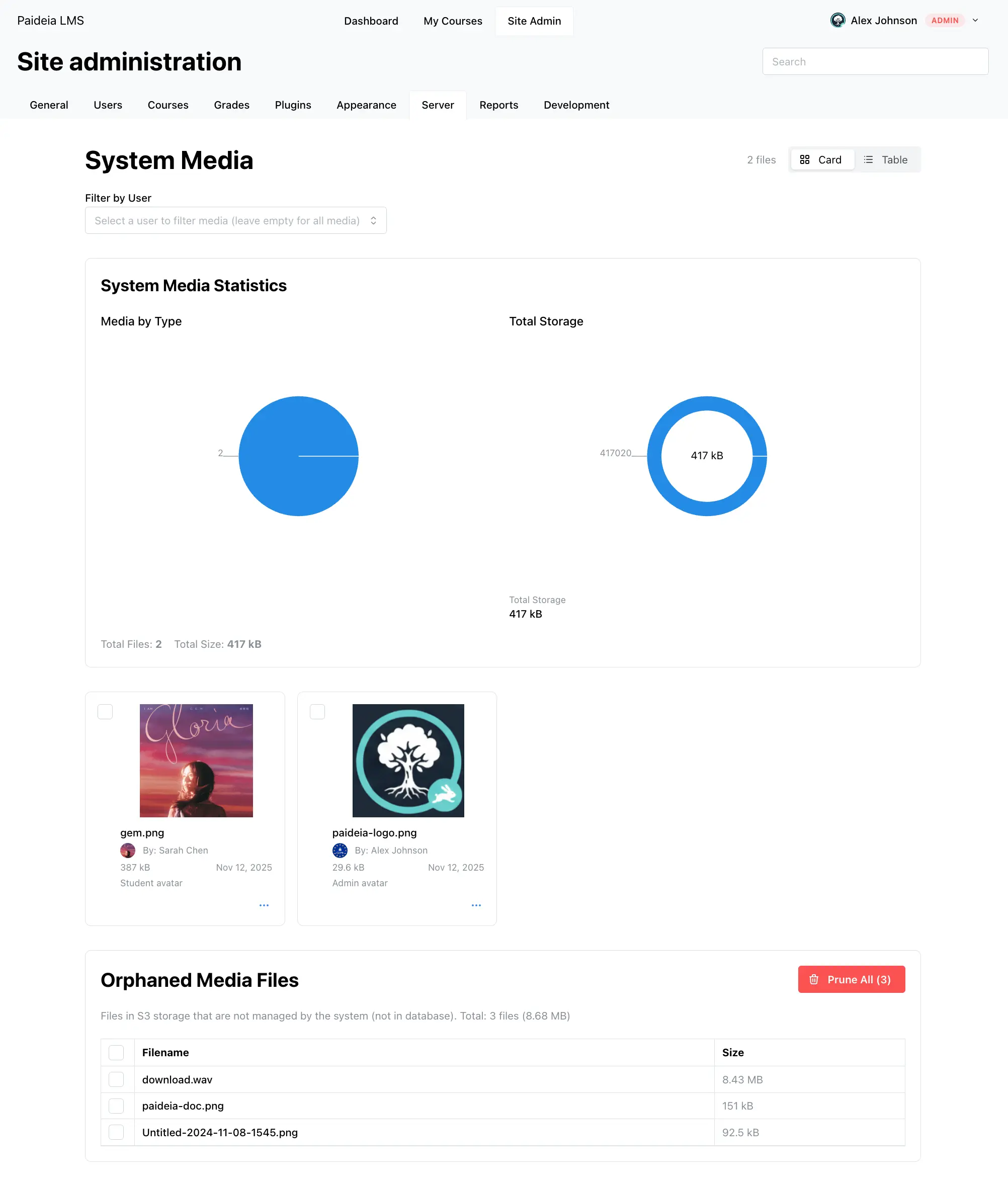
The Admin Media Management page provides administrators with a comprehensive view of all media files in the system. You can view system-wide statistics, filter by user, manage media files, and clean up orphaned files that exist in storage but aren’t tracked in the database.
Why Admin Media Statistics Matter
Section titled “Why Admin Media Statistics Matter”Paideia’s built-in media management system provides administrators with powerful analytics and insights that are essential for effective platform management. Unlike LMS platforms that rely on external storage integrations, Paideia’s integrated system gives you complete visibility and control over media usage.
The statistics enable administrators to:
- Make Data-Driven Decisions: Base storage policies and quotas on actual usage data
- Identify Power Users: Find users who may need additional storage or guidance
- Optimize Storage Costs: Understand what types of content drive storage costs
- Plan Infrastructure: Use historical data to predict future storage needs
- Troubleshoot Issues: Quickly identify unusual storage patterns
Overview
Section titled “Overview”Admin Media Management provides:
- System-Wide View: See all media files across the entire platform
- User Filtering: Filter media files by specific users
- Media Statistics: Visual charts showing media distribution and storage usage
- Creator Information: See who uploaded each file with profile links
- Orphaned Media Cleanup: Identify and remove files not tracked in the database
- Bulk Operations: Select and delete multiple files at once
Accessing Admin Media Management
Section titled “Accessing Admin Media Management”There are two ways to access the Admin Media Management page:
- Via Admin Dashboard: Navigate to Site Admin → Server → Media management
- Direct Navigation: Navigate directly to
/admin/mediain your browser
System-Wide View
Section titled “System-Wide View”The Admin Media Management page displays all media files in the system by default. You can see total file count, total storage, media distribution by type, and storage visualization comparing user storage vs system storage.
View Modes
Section titled “View Modes”Switch between two view modes using the “Card” and “Table” toggle buttons:
- Card View: Visual cards with thumbnails and file information
- Table View: Data table format with sortable columns
User Filtering
Section titled “User Filtering”To view media files for a specific user:
- Find the “Filter by User” section at the top of the page
- Click the user selector dropdown and search by name or email
- Select the user from the dropdown
- The page updates to show only that user’s media files
When a user is selected, statistics and charts update to show user-specific data. Clear the filter to view all system media again.
Media Statistics
Section titled “Media Statistics”The page provides comprehensive statistics about media usage:
Media by Type
Section titled “Media by Type”A pie chart displays the distribution of media files by type (images, videos, audio, PDFs, documents, archives, etc.), with each segment color-coded for easy identification.
Storage Visualization
Section titled “Storage Visualization”A donut chart displays storage usage:
- When Viewing All Media: Shows total system storage
- When Viewing a User: Shows user storage (blue) vs system storage (green) for comparison
Below the charts, you’ll see total files and total size for the current view.
Creator Information
Section titled “Creator Information”Each media file displays information about who uploaded it, including a small avatar and clickable name that links to the user profile. This helps identify upload sources, navigate to user profiles, and track file ownership.
Orphaned Media Cleanup
Section titled “Orphaned Media Cleanup”Orphaned media files are files that exist in S3 storage but are not tracked in the database. These can accumulate over time and waste storage space.
Viewing and Deleting Orphaned Files
Section titled “Viewing and Deleting Orphaned Files”The Orphaned Media Files section displays the total count, total size, and a file list with checkboxes for selection.
Selective Deletion: Check boxes next to files you want to delete, then click “Delete Selected”.
Bulk Pruning: Click the “Prune All” button (red button with trash icon) to delete all orphaned files at once.
The cleanup includes validation, batch processing, error handling, and detailed results reporting.
Managing Media Files
Section titled “Managing Media Files”As an administrator, you can perform all the same operations as users:
- View Files: Card view, table view, and full-size preview modal
- File Operations: Download, rename (updates both database and S3), delete (individually or in batches), and show usage
- Permissions: View all files, delete any file, manage orphaned files, and view system statistics
Best Practices
Section titled “Best Practices”- Regular Monitoring: Check storage and file distribution regularly, monitor growth, and identify trends
- Orphaned File Management: Periodically check for and remove orphaned files, investigate causes if they appear frequently
- User Support: Help users understand storage limits, guide them on organizing media, and assist with troubleshooting
Troubleshooting
Section titled “Troubleshooting”Statistics Not Updating: Refresh the page, check database connectivity, and review system logs.
Orphaned Files Not Detected: Verify S3 connectivity, check bucket accessibility, and review system logs for S3 errors.
Cannot Delete Files: Check that files aren’t in use, verify admin permissions, and check system logs.
User Filter Not Working: Verify the user exists, check that the user has uploaded media files, and refresh the page.
Related Features
Section titled “Related Features”- Media Management - Learn how users manage their media files
- Site Policies - Configure storage quotas and upload limits
- Maintenance Mode - Learn about other admin features
