
Course Module - Discussion
When a Discussion module is linked to a course, it becomes a course module with course-specific settings. Students enrolled in the course can participate in threaded discussions by creating posts and replies, which instructors can moderate and grade.
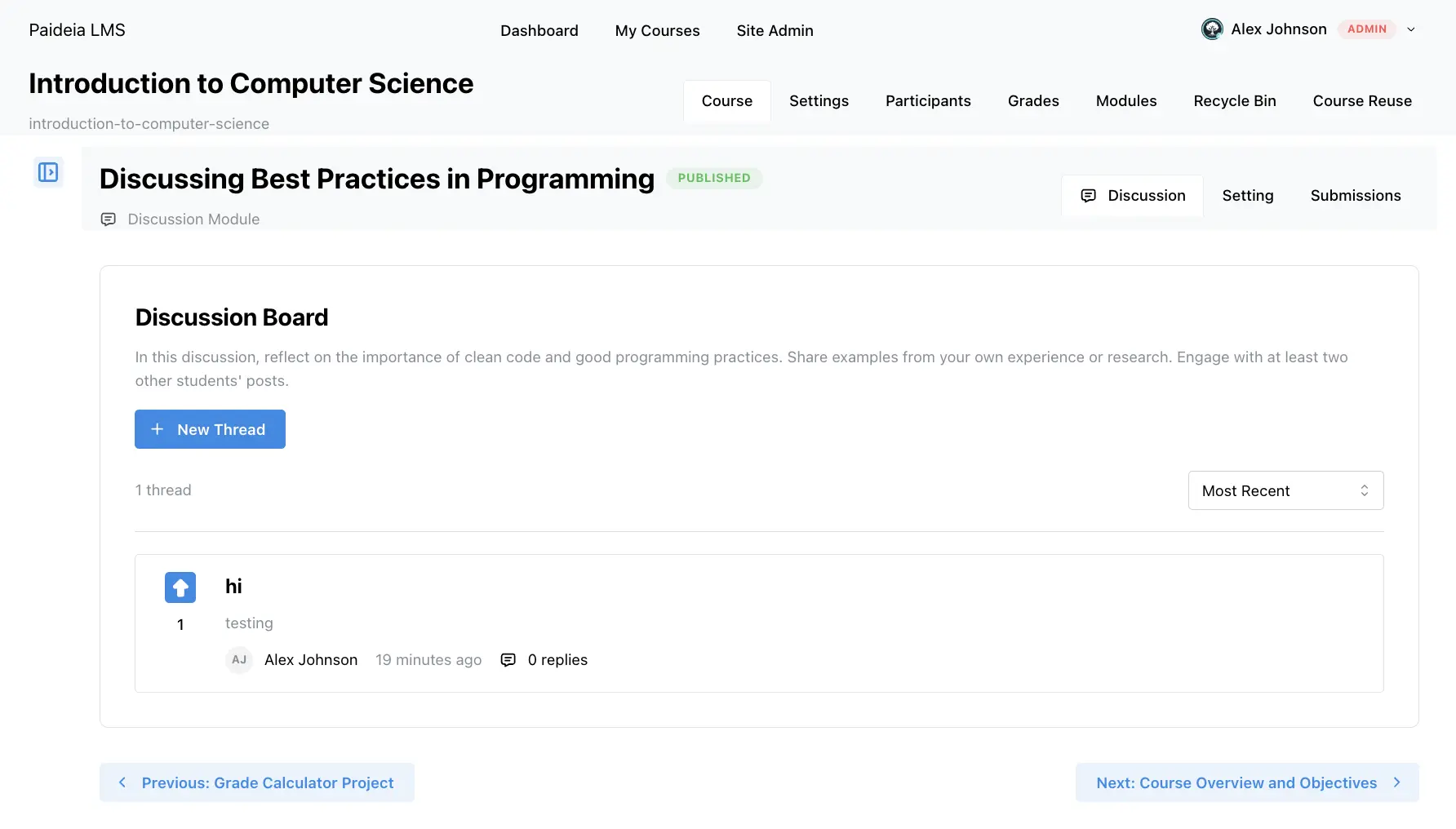
Course-Specific Settings
Section titled “Course-Specific Settings”When a discussion module is added to a course, you can configure course-specific settings that apply only to that course:
Discussion Dates
Section titled “Discussion Dates”- Open date: When students can start posting
- Close date: When new posts are no longer accepted
- Lock date: When threads are locked from further replies
Posting Settings
Section titled “Posting Settings”- Posting frequency: Control how often students can post
- Post length limits: Set minimum or maximum post lengths
- Attachment support: Allow file attachments in posts
- Post editing: Allow students to edit their own posts
Module Name Override
Section titled “Module Name Override”- Custom name: Override the default module name for this course
- Useful when the same discussion serves different purposes in different courses
Student Discussion Posts
Section titled “Student Discussion Posts”Students enrolled in the course can create discussion posts and replies. Each post is tied to:
- The course module (the discussion as it appears in this course)
- The student who created the post
- The post date and time
- The thread (if replying to an existing post)
Creating Posts
Section titled “Creating Posts”Students can participate in discussions by:
- Navigating to the discussion module in the course
- Clicking “New Post” or “Start Discussion” to create a new thread
- Entering their post content with rich text formatting
- Attaching files if allowed
- Submitting their post
Replying to Posts
Section titled “Replying to Posts”Students can reply to existing posts:
- Navigating to a discussion thread
- Clicking “Reply” on a post
- Entering their reply content
- Submitting their reply
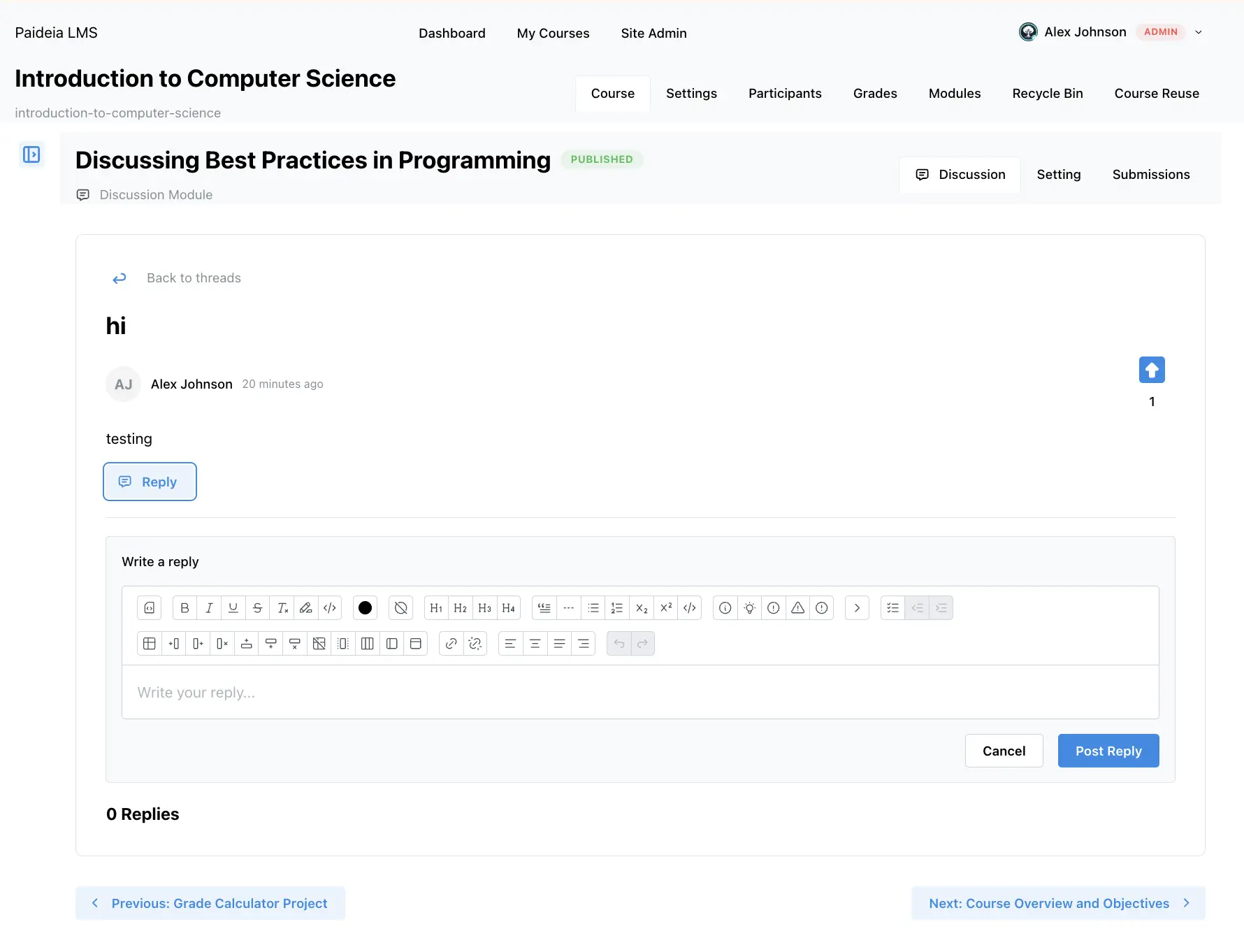
Post Features
Section titled “Post Features”Discussion posts support:
- Rich text formatting: Format text with bold, italic, lists, etc.
- File attachments: Attach images, documents, or other files
- Threaded structure: Nested replies create discussion threads
- Post editing: Edit posts if enabled in settings
- Post deletion: Delete own posts if enabled in settings
Viewing and Managing Discussions
Section titled “Viewing and Managing Discussions”Instructors can view and manage all discussion activity for the course module:
Discussion Overview
Section titled “Discussion Overview”- All threads: View all discussion threads
- Thread organization: Organize threads by topics or categories
- Post counts: See number of posts and replies
- Activity tracking: Monitor discussion participation
Individual Thread View
Section titled “Individual Thread View”When viewing a discussion thread, instructors can:
- Read all posts: See the complete conversation
- Moderate posts: Approve, edit, or delete posts if moderation is enabled
- Pin threads: Pin important threads to the top
- Lock threads: Lock threads to prevent further replies
- Grade participation: Grade student participation in the discussion
Moderation
Section titled “Moderation”If moderation is enabled:
- Moderation queue: Review posts before they appear publicly
- Post approval: Approve or reject posts
- Content filtering: Filter inappropriate content
- Report handling: Address reported posts
Grading Discussion Participation
Section titled “Grading Discussion Participation”Instructors can grade student participation in discussions:
Participation Metrics
Section titled “Participation Metrics”- Post count: Number of posts created by the student
- Reply count: Number of replies to other students’ posts
- Quality assessment: Evaluate the quality of contributions
- Engagement: Assess how well students engage with the discussion
Grading Methods
Section titled “Grading Methods”- Post count grading: Grade based on number of posts
- Reply count grading: Grade based on number of replies
- Quality rubrics: Use rubrics for consistent evaluation
- Manual assessment: Manually evaluate participation quality
- Peer evaluation: Allow students to evaluate each other’s contributions
Discussion Best Practices
Section titled “Discussion Best Practices”When working with discussion course modules:
- Create engaging prompts: Provide discussion topics that encourage thoughtful responses
- Set clear guidelines: Establish expectations for participation
- Moderate actively: Monitor discussions to maintain quality
- Encourage peer interaction: Require replies to foster engagement
- Provide timely feedback: Respond to student posts and provide guidance
- Use grading rubrics: Create consistent assessment criteria
- Pin important threads: Highlight key discussion topics
- Lock completed discussions: Prevent further posts when discussions are complete
Post Status
Section titled “Post Status”Discussion posts can have different statuses:
- Draft: Student is still composing the post
- Published: Post is visible to all course participants
- Pending moderation: Post is awaiting approval (if moderation is enabled)
- Locked: Thread is locked and no longer accepts replies
- Archived: Discussion is preserved but no longer active
